Getting started
Once your installer has set up and configured your Wallmount, getting going takes only a few minutes. You control the Enua Charge / Charge E from the Enua app, and you'll need the registration code your installer gave you.
Note
If your charging station is operated by a Charge Point Operator (CPO), you use the operator's own app and systems instead of the Enua app. The rest of this guide doesn't apply.
1. Put the charger on its Wallmount
If your Enua Charge / Charge E isn't already on its Wallmount, mount it now. Hold the charger with both hands and press it straight onto the configured Wallmount, keeping it parallel. Wait for it to lock and show a solid white light before you attach a charging cable. (Your installer normally does this; you only need it if the charger has been taken off.)
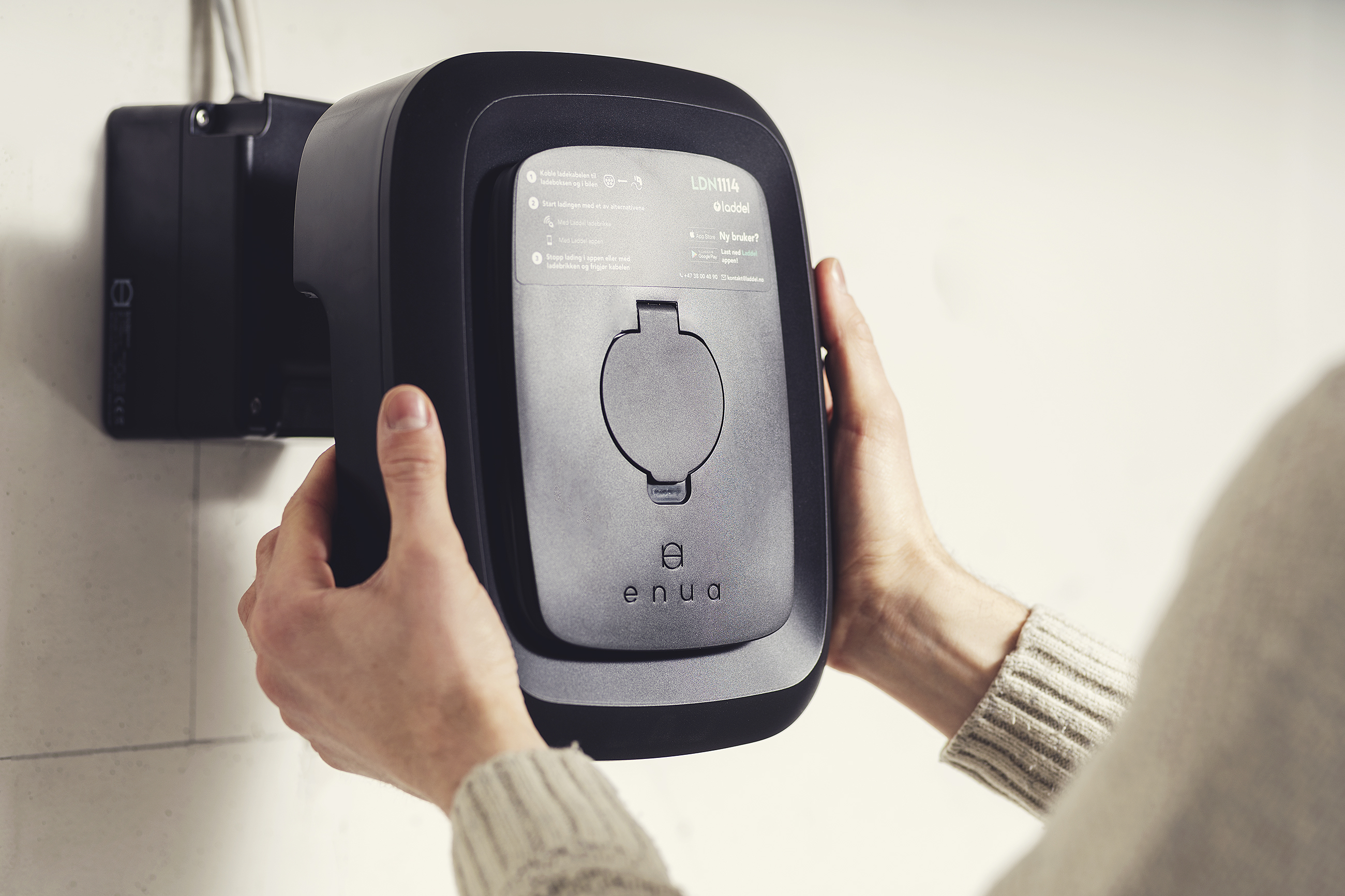
If the charger won't seat flush against the Wallmount or won't lock, the cause is usually an installation problem — see common mistakes when installing the Wallmount.
2. Download the Enua app
Install the Enua app, then open it and create an account (or sign in if you already have one):
3. Register your charger
Add your charger using the registration code from your installer:
- First Enua product? Tap the large + on the app's main page.
- Already have a product? Tap the down-arrow at the top and choose Register new product.
Then enter your code and tap Redeem.

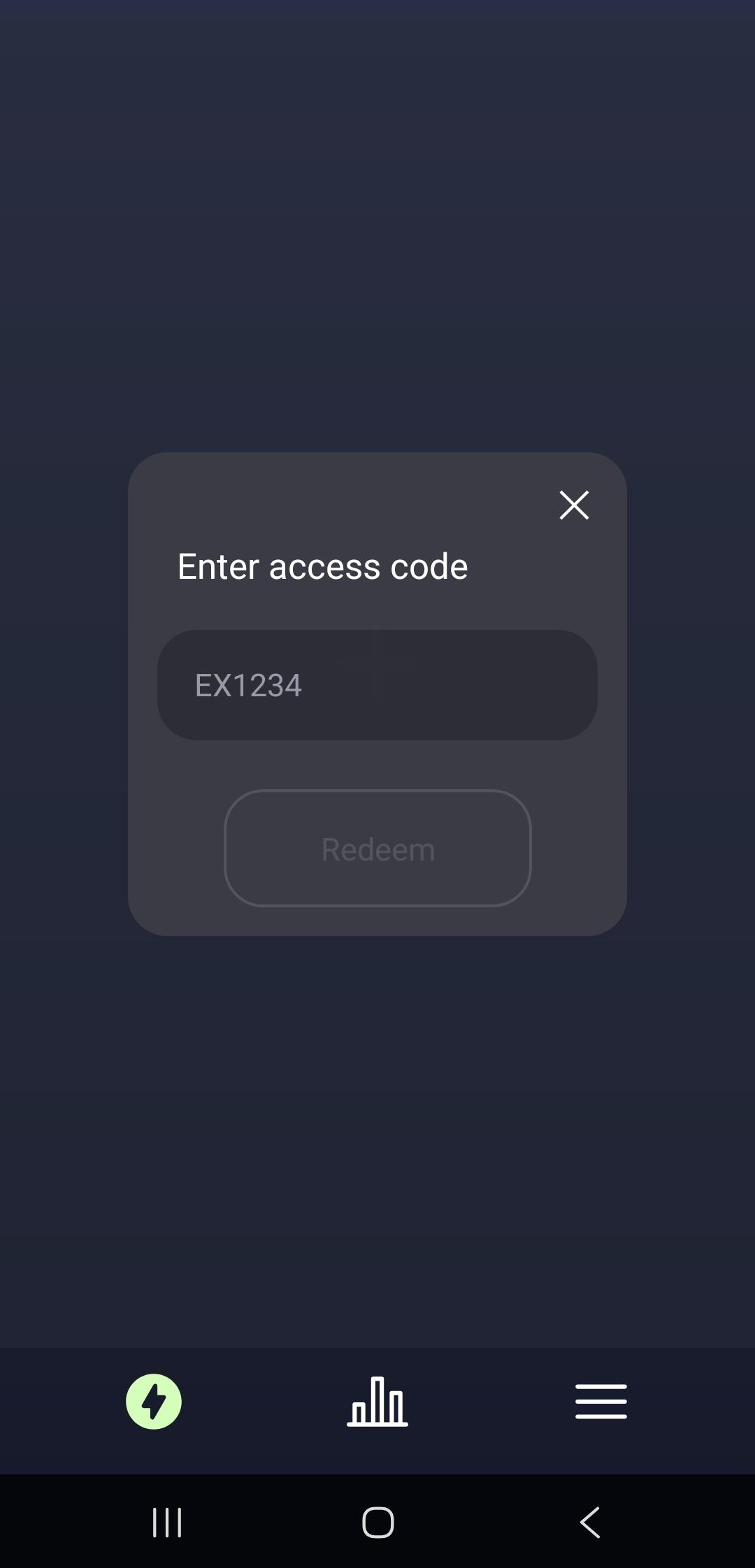
4. Check the charger is ready
Look at the LED ring on the front of the charger. A solid white light means it's online and ready to use. If you see another colour, see What the lights mean.
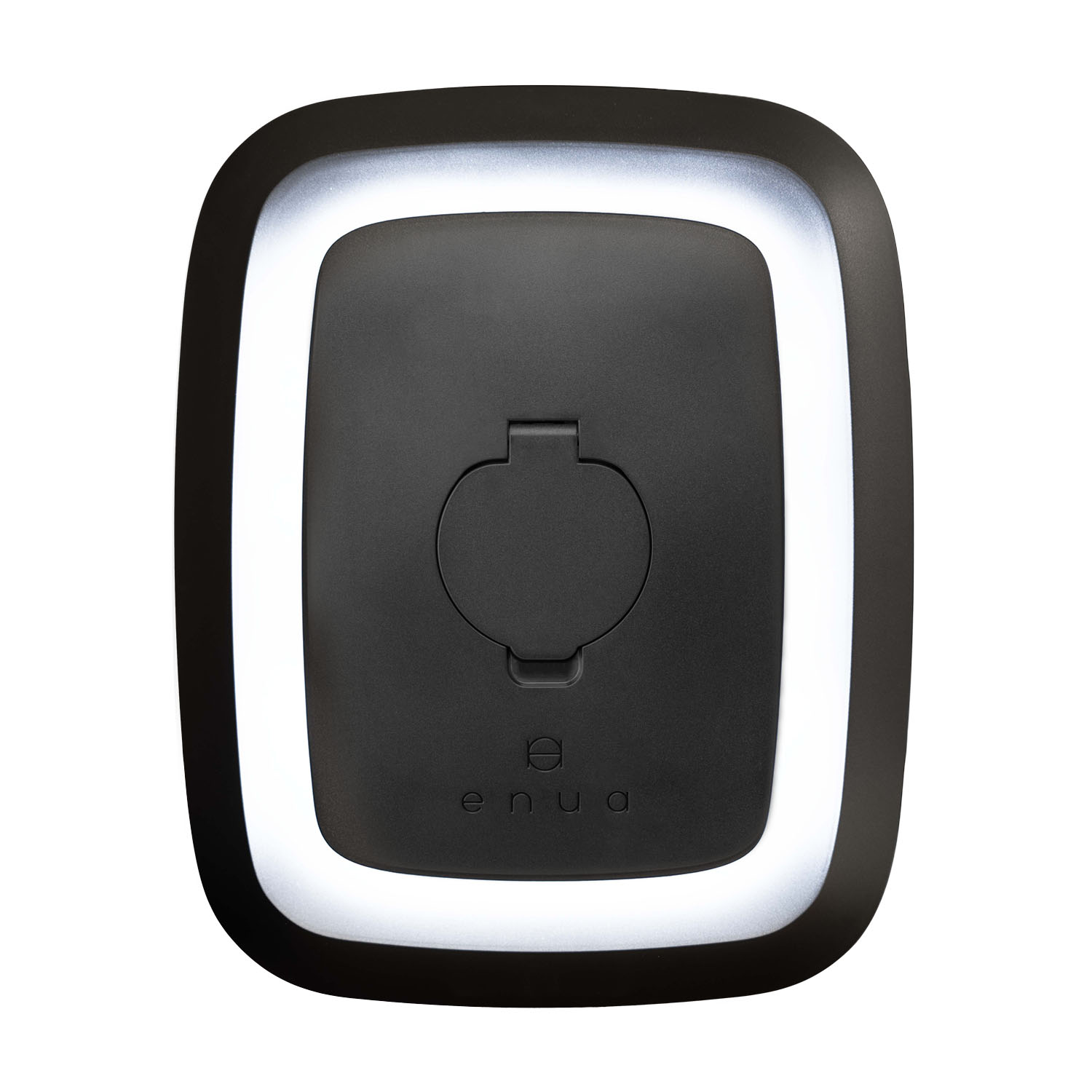
5. Start your first charge
- Plug the charging cable into your car and the charger.
- If your charger uses access control, the ring turns yellow and waits for authorization — present your charging tag against the Enua logo, or tap Start charging in the app. If access control is off, charging starts on its own.
- The ring shows a rotating white light while charging.
- To stop, end the session in the app (or simply unplug, depending on your car).
Tip
Want charging to start automatically when you plug in, with no tag or app tap? Set up Autocharge.
Related
- What the lights mean — read the charger's status at a glance.
- Access control — charging tags, the app, and who can start a session.
- Charging speed and troubleshooting — if charging is slow or won't start.
Full details are in the Enua Charge & Charge E user manual (PDF).