Load balancing
For electricians. When you install a charging facility with one or more Enua Charge units, you may need to monitor the load on the main circuit breaker. Enua's dynamic load balancing continuously measures the building's total power consumption and automatically adjusts EV charging output to prevent overloading the main circuit breaker.
- Charging speed is optimised to the available capacity.
- The building's total energy demand is prioritised automatically.
- Operation is fully automatic — no user intervention required.
- Scales from single-family homes to large buildings.
You enable it by installing a compatible energy meter and completing the guided configuration in the Enua Installer app.
Warning
These devices must be installed and configured by a certified electrician. Follow the instructions in the official manual and the device manufacturer's instructions closely — failure to do so can lead to damage and injury.
Compatible devices
| Device | Range | Phases | Mounting / connection |
|---|---|---|---|
| Shelly Pro 3EM 120/400 | 0–120 A / 0–400 A | 1 & 3 | DIN rail, splittable current transformer |
| Shelly Pro EM 50 | 0–50 A | 1 | DIN rail, splittable current transformer |
| Shelly Pro 3EM 3CT63 | 0–63 A | 1 & 3 | DIN rail, fixed current transformer |
| Perific Max / Perific One | — | 1 & 3 | Phase conductors (L1–L3) or HAN/P1 (RJ12); USB / DIN adapter |
Shelly devices connect via Wi-Fi (802.11 b/g/n) and Ethernet (RJ45). They are made for 400 V TN (1/3-phase + N) but also work on 230 V IT (1/3-phase, without N).
Note
The meter and the charger do not need to be on the same Wi-Fi — they work as long as both are connected to the Enua cloud. An internet connection (Wi-Fi or Ethernet) must be available for the device; some devices support Wi-Fi only.
Install a Shelly meter
- Install the meter on a DIN rail or at the cabling to the main circuit breaker, following the wiring diagram in the official manual.
- Finish the physical installation before starting configuration.
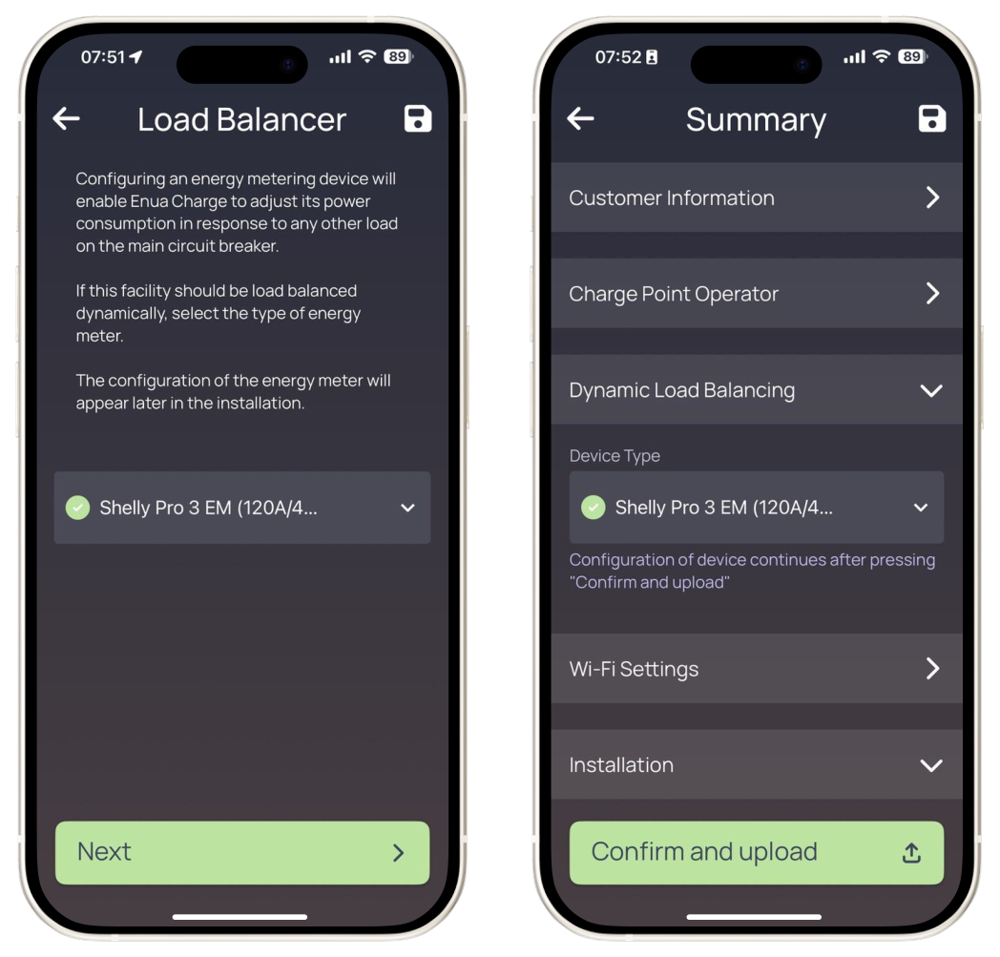
- In the Enua Installer app, select the correct load balancer during facility configuration — configuration then proceeds automatically.
- Choose Wi-Fi or Ethernet for the device's internet connection. (If you already configured Wi-Fi for the charging station, it is pre-filled and editable.) For Wi-Fi, select the Shelly Wi-Fi in your phone's settings, then continue in the Enua Installer app.
- Complete the final step to connect the device to the Enua cloud; a confirmation screen verifies the connection.
Note
You do not need the Shelly app — all configuration is done through the Enua Installer app. For full technical data, see the device's datasheet at shelly.com.
Install a Perific meter
- Install the Perific device near the fuse cabinet, with access to the main circuit breaker cabling, following Perific's instructions (see download.perific.com).
- In the Enua Installer app, select the correct load balancer during facility configuration.
- Use the ID provided by the Enua Installer app in the Perific app to connect the Perific device to the Enua cloud.
- Press Start verification — an automated test verifies the connection. You can also confirm it in the Perific app.
Note
Perific setup uses both the Enua Installer app and the Perific app.
Load balancing is selected and configured as part of programming the Wallmount in the Enua Installer app.
Full manual: Dynamic load balancing installation manual (PDF). The PDF is the authoritative source.